Virtual Camera
A MoCap-tracked virtual camera I've been evolving since 2018, currently an iPad rig.
What it is
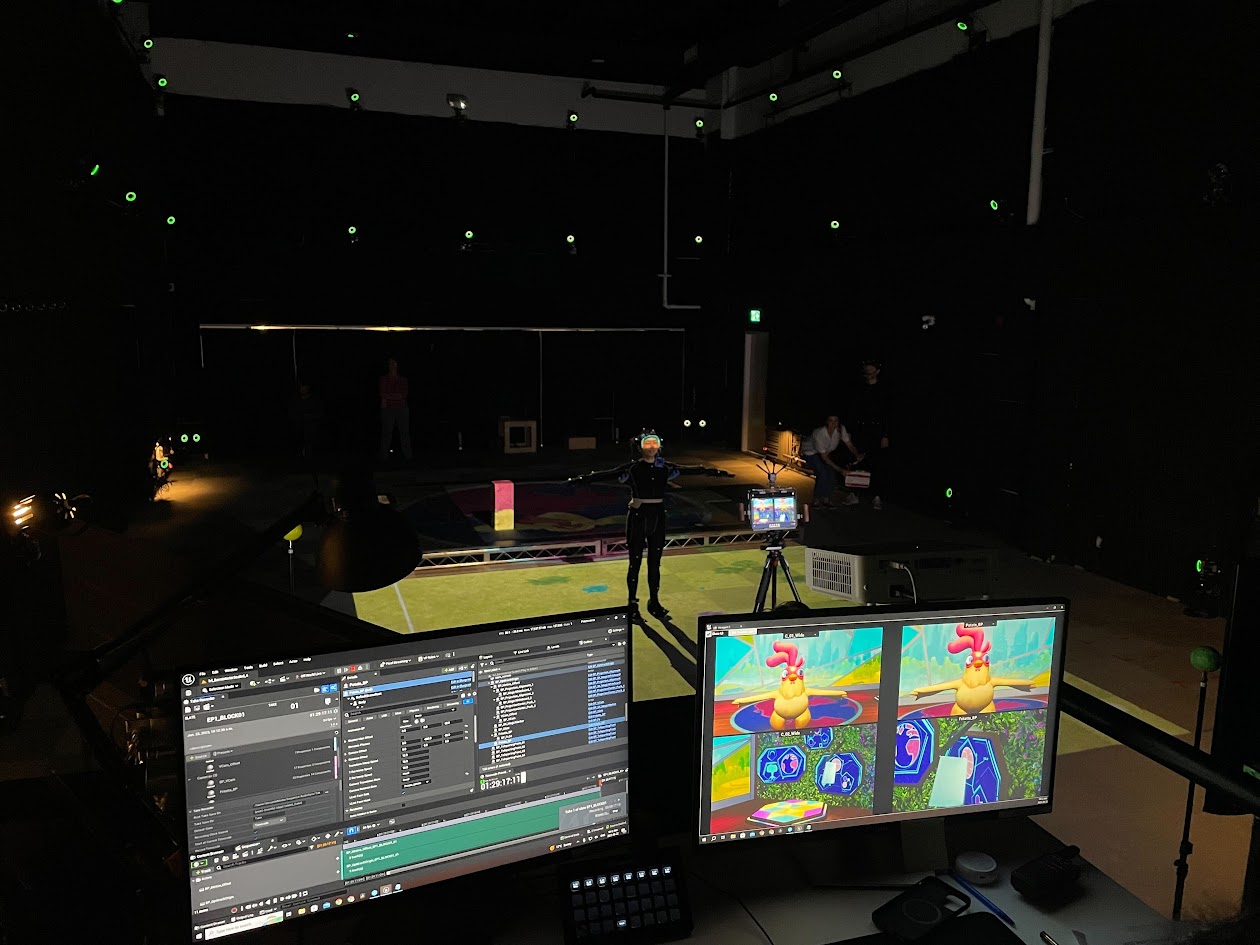
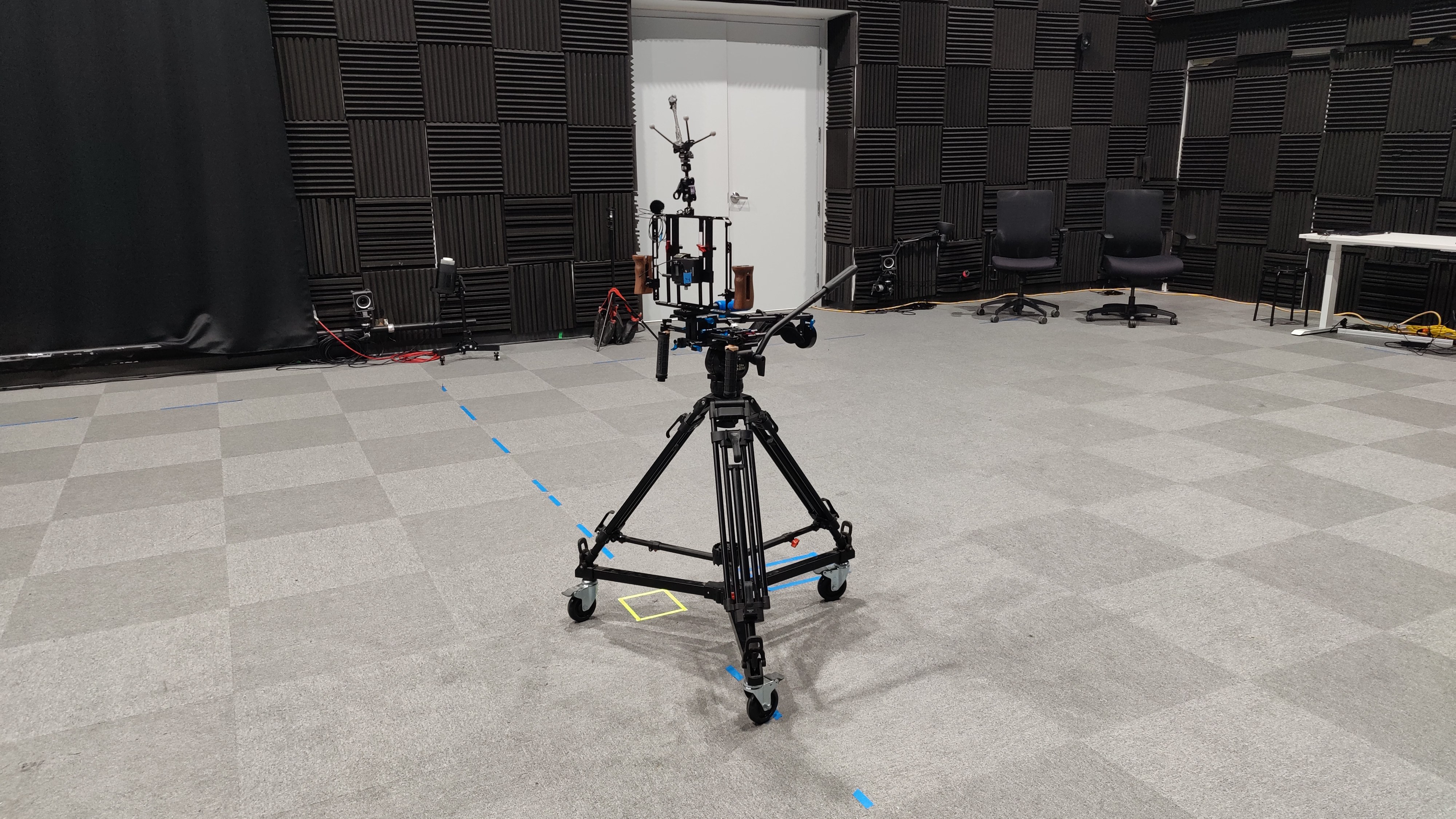
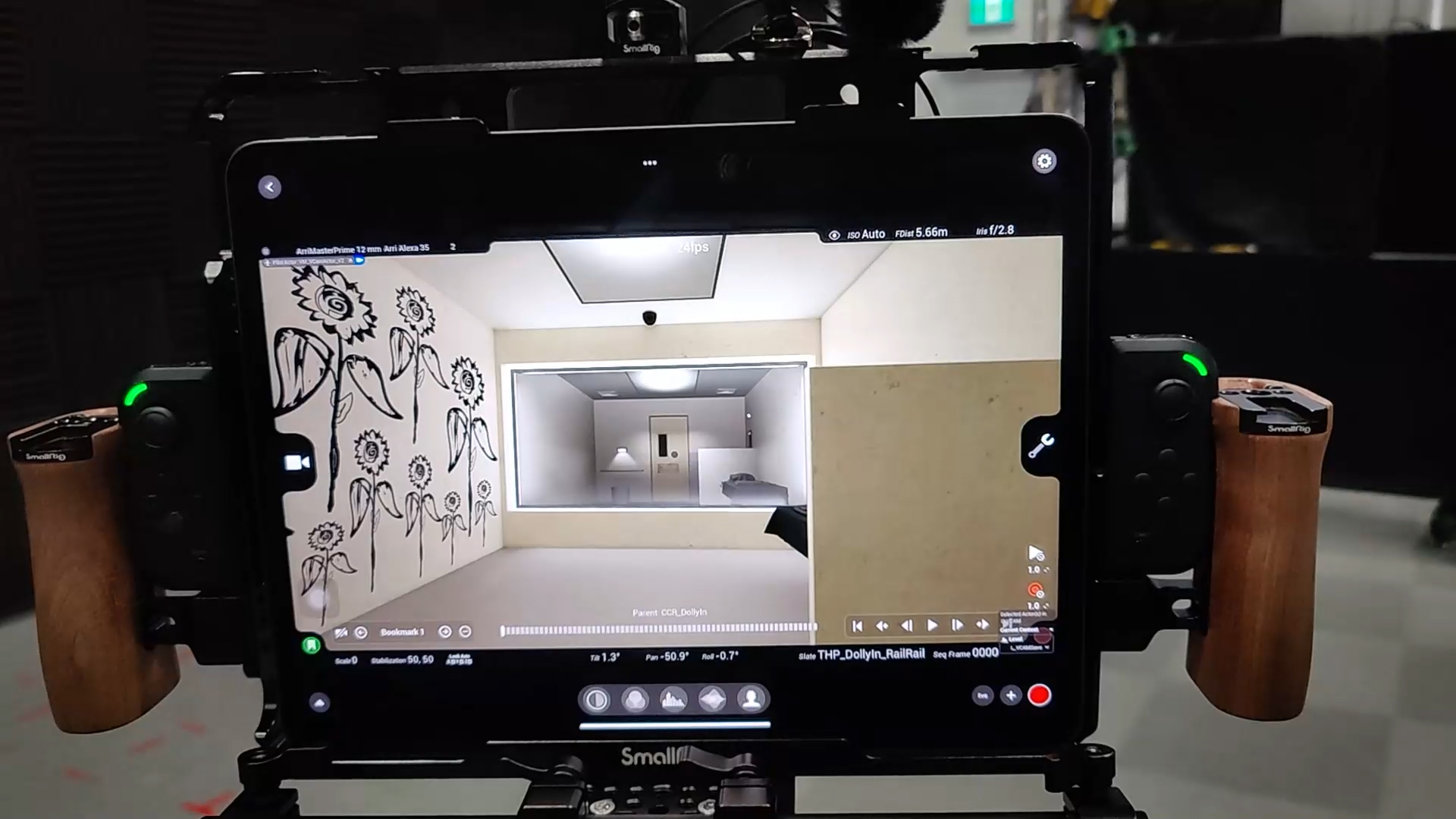
A camera rig that lets a real camera operator shoot inside a digital scene — the kind of scene that’s normally rendered on a computer rather than filmed on location. The operator holds the rig like a real camera, walks around the studio’s motion-capture stage (a marker-tracked room called a “volume”), and the digital scene reacts to where they’re pointing. What they see on the rig’s screen is the live computer-generated view from the camera’s current position.
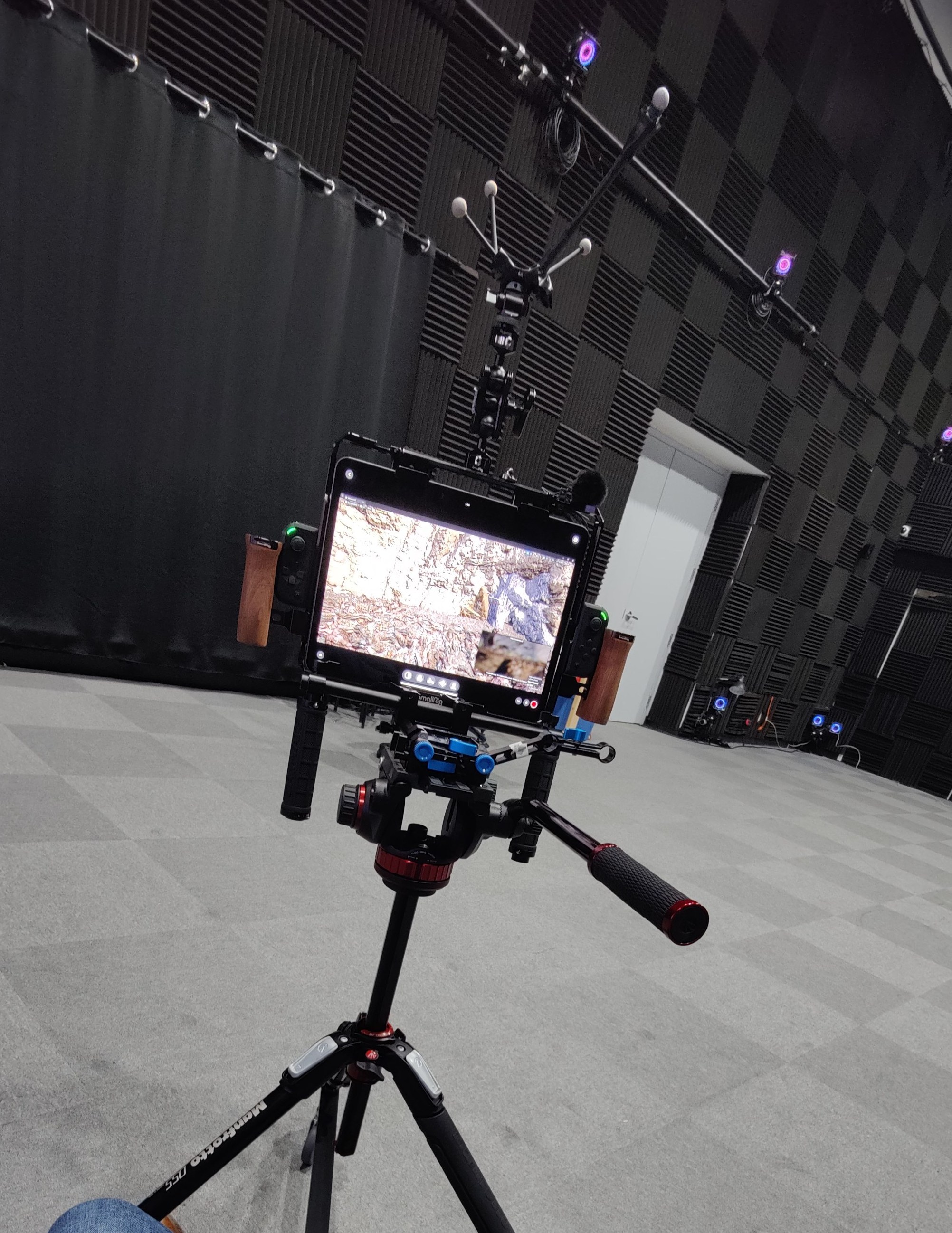
The rig is an iPad in a sturdy metal frame on a wheeled tripod, with game controllers on the grip for camera flight, lens swaps, and movement speed. Built since 2018 — first as a prototype at TETE, then evolved into the studio’s standard operator-driven virtual camera at Versatile Media in 2022, where I’ve led it solo as Realtime Supervisor.
The problem
Epic Games ships a free iPad app called Live Link VCAM that turns an iPad into a basic virtual camera. It works for small shoots, but on a professional motion-capture stage it runs into four issues (drift, imprecise aiming, restricted to operator’s physical position, no mid-shot controls) plus a video-streaming lag that makes the iPad unusable as a real viewfinder.
The four Live Link VCAM limitations in detail
- It drifts. The iPad’s built-in motion sensors accumulate error over time. After a long take, the camera’s position no longer matches where the operator’s standing.
- It can’t aim precisely enough. When the virtual camera has to line up with motion-captured actors and digital objects on the same stage, the iPad’s sensors aren’t accurate enough.
- The operator can only “be” where they’re physically standing. No way to fly the camera up over the action or beyond the edge of the stage.
- Lens swaps and speed adjustments aren’t reachable mid-shot. They live in touchscreen menus that the operator can’t reach while filming.
The video-streaming method Unreal normally uses to show the iPad a live view also adds enough lag to make the iPad unusable as a viewfinder.
What’s new vs the stock VCAM
Three changes are what make this rig usable on a real shoot:
- Tracked by the motion-capture system, not the iPad’s sensors. Position and rotation come from the studio’s ceiling-mounted MoCap cameras (the same ones that track the actors). No drift, stage-accurate alignment with everything else in the scene.
- A real-time video link to the iPad with no perceptible lag. Replaces Unreal’s default streaming with a dedicated low-latency video transmitter. The operator can use the iPad as a real viewfinder.
- Game-controller flight on the grip. Two Razer Junglecat controllers (small game controllers that clamp onto either side of the rig like phone-mount gaming controls) give the operator full camera flight, lens swap, and speed control without taking their hands off the rig.
Hardware breakdown
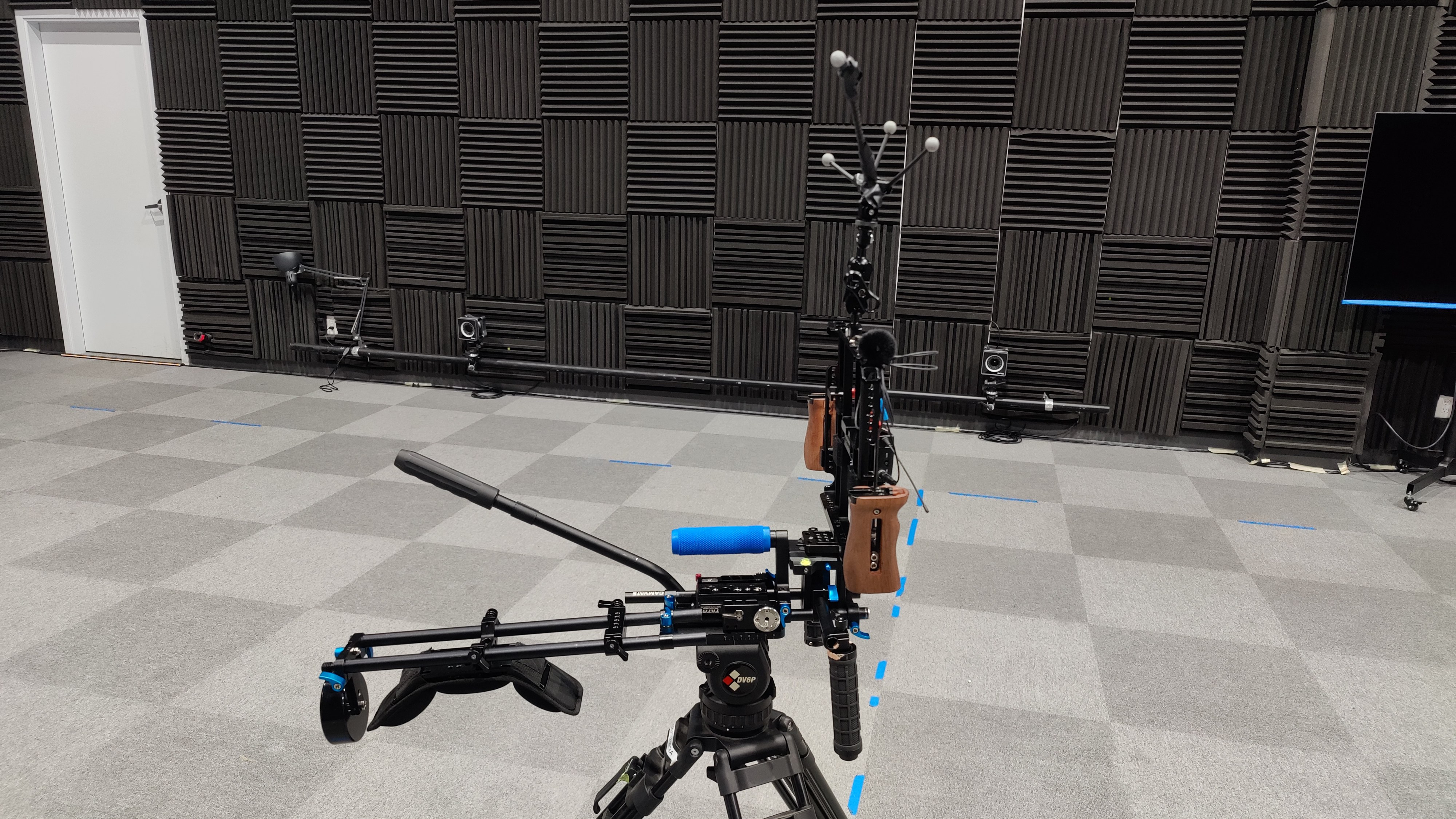
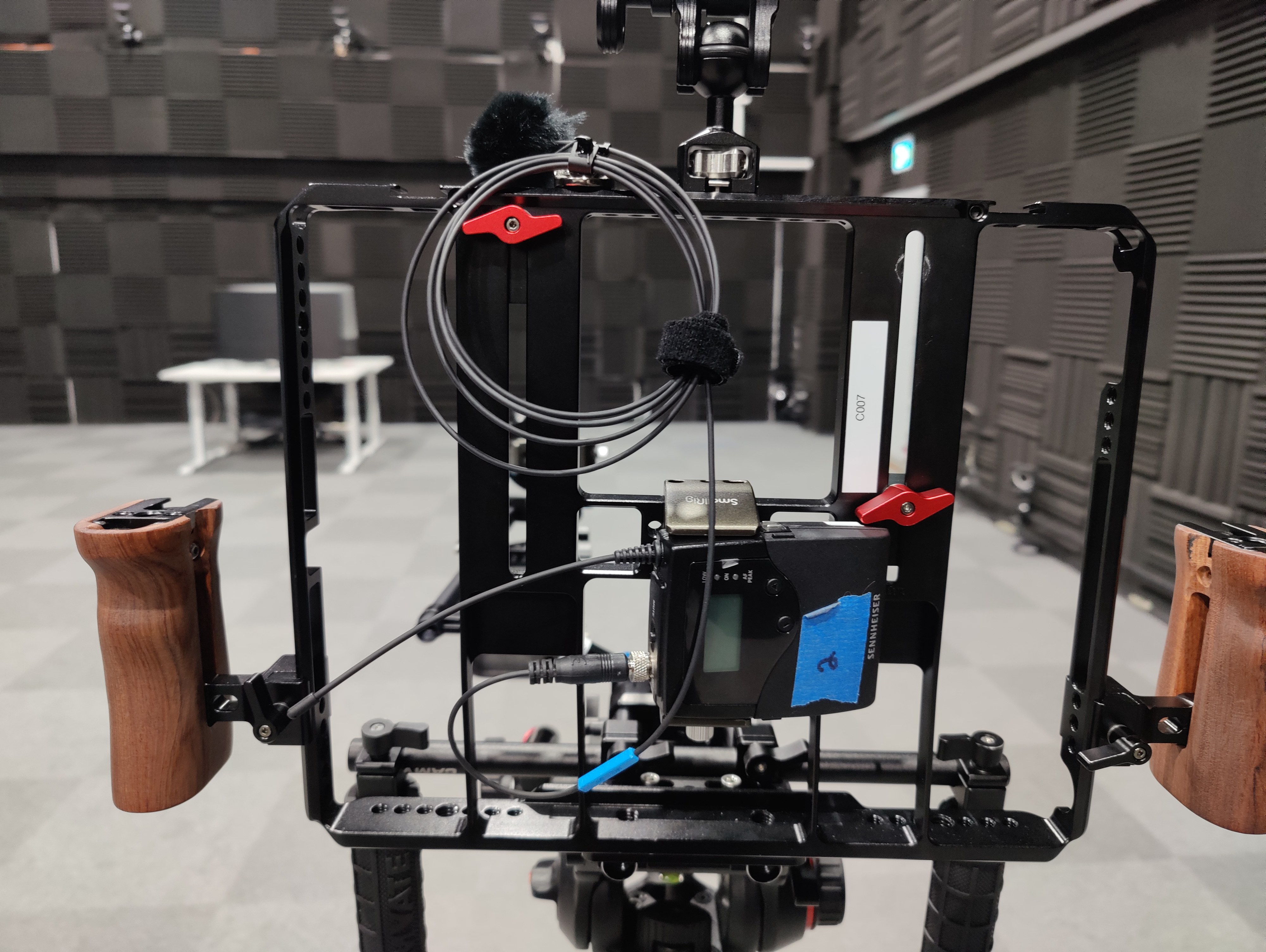
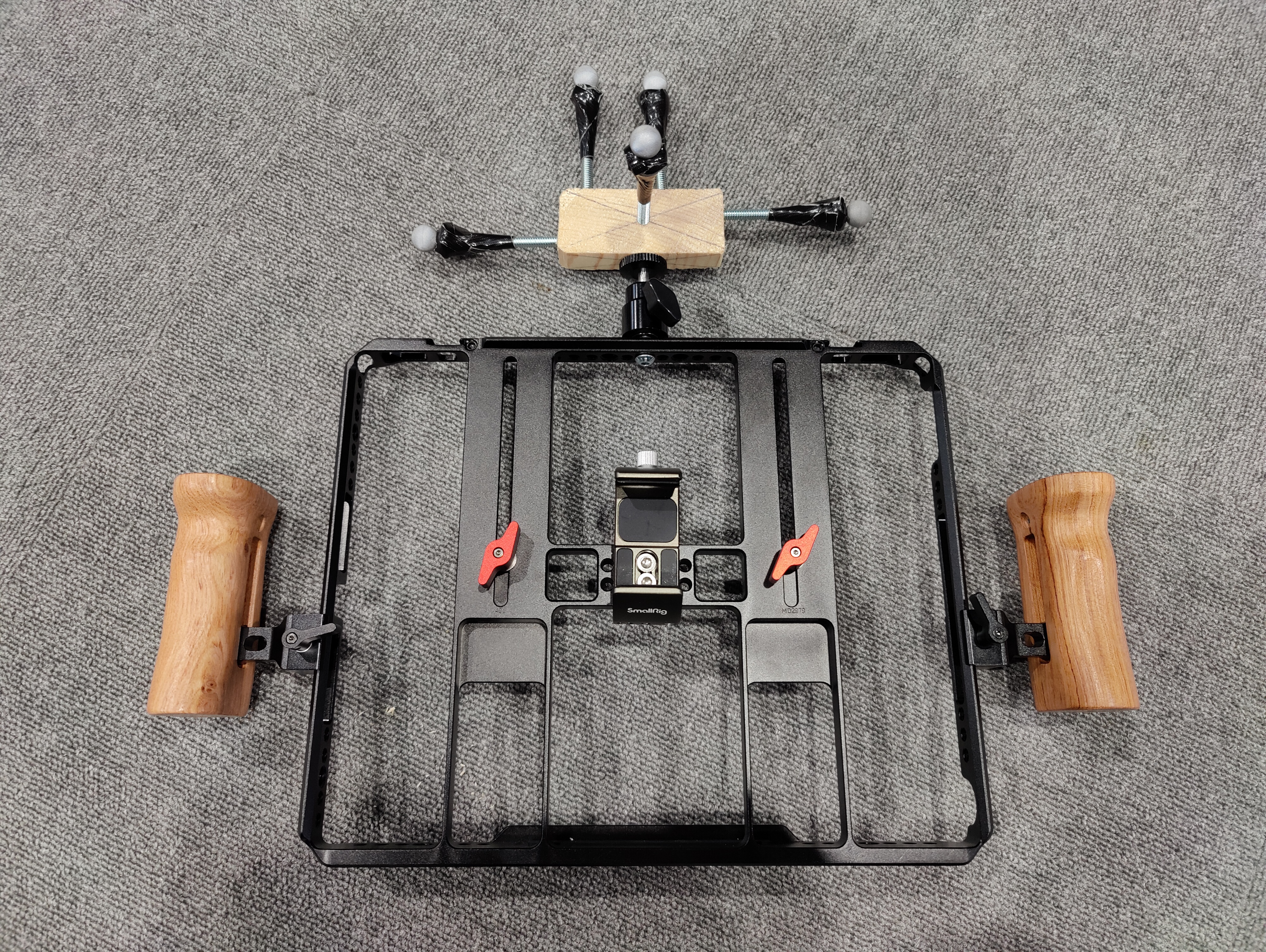
- iPad in a SmallRig metal frame, multi-config grip. The viewfinder, sized and weighted like a real camera body. The current frame accommodates two-handed body hold, shoulder mount, or top-handle hold so it adapts to whatever camera-handling style the operator prefers, instead of forcing them into a single setup.
- Wheeled tripod. The dolly. The cage detaches from the tripod head, so the operator can either roll the whole rig around the volume on the tripod’s wheels or pick the cage up and carry it like a handheld camera.
- Custom OptiTrack marker crown. The position and rotation reference for the virtual camera. The custom crown shape gives the OptiTrack system a unique pattern to lock onto, and the elevated mounting keeps the markers visible to the ceiling cameras even when the operator’s hands or shoulders block the rig itself.
- Two Razer Junglecat controllers. Mounted on the grip. Let the operator fly the camera beyond the volume, change lenses, and adjust speed.
- Microphone transmitter. Lets the camera operator talk to the Unreal operator at the brain bar without dropping the rig.
Tracking implementation
OptiTrack MoCap markers are mounted on a custom crown on top of the rig. The crown shape gives the volume’s OptiTrack system a unique geometric signature to lock onto (no risk of mistaking it for any other tracked rigid body in the volume), and the elevated position keeps the markers visible to the ceiling-mounted cameras even when the operator is holding the rig low, on their shoulder, or close to their body. The position and rotation stream into Unreal every frame and drive the virtual camera’s transform directly.
Viewport streaming
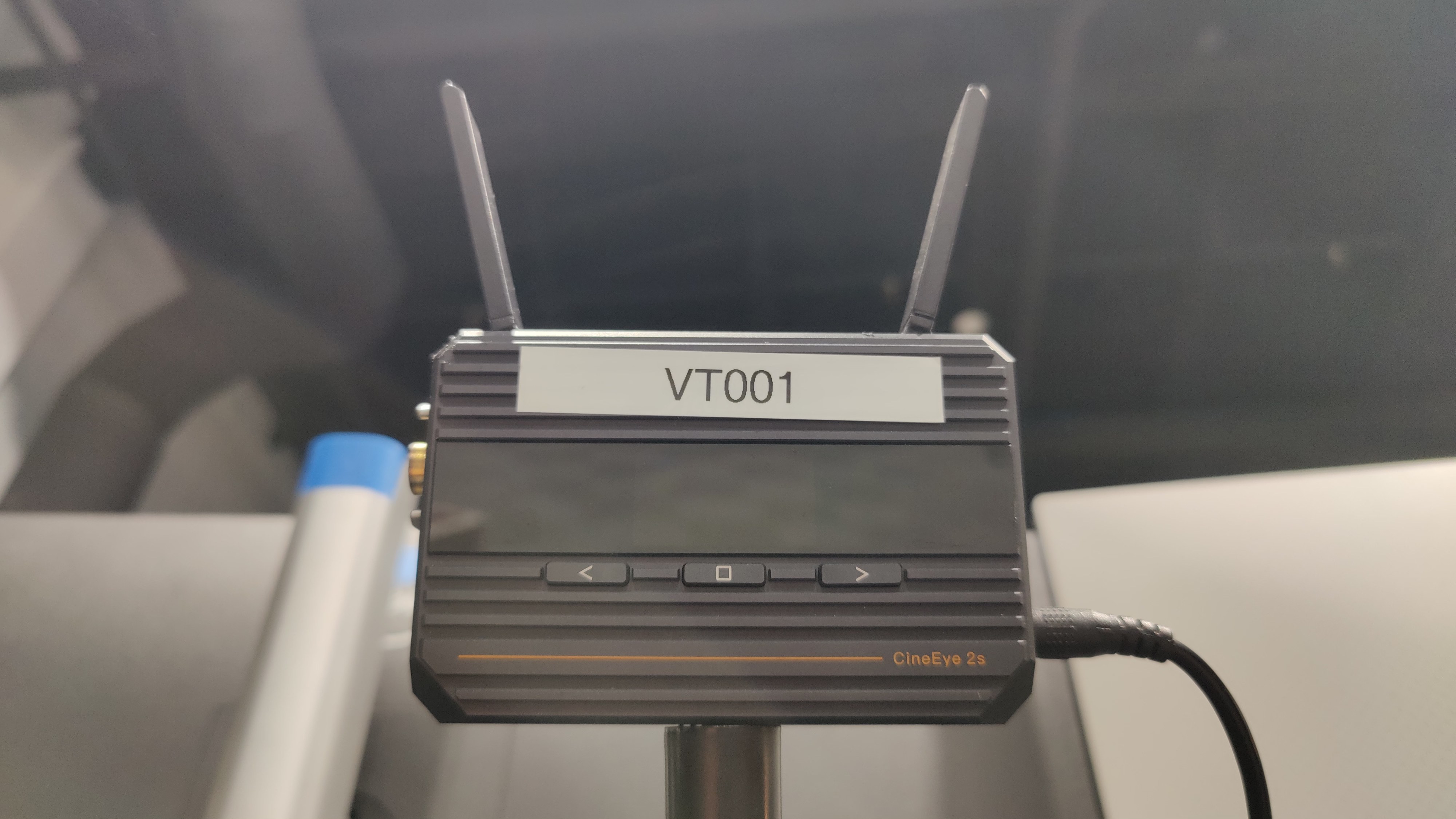
Instead of Unreal’s pixel streaming (which adds enough latency to make a live viewfinder unusable), the rig uses an Accsoon CineEye 2S video transmitter to encode the Unreal viewport and stream it to the iPad over WiFi. Latency is low enough that the operator can use the iPad as a real viewfinder, with no perceptible lag affecting framing decisions. The only trade-off is that we lose the iPad’s touch screen button interactions, but I mapped the most important features the camera operator needs into the Junglecat controllers, so we don’t need to rely on touch controls during a take.
Stock vs custom (full diff)
Built on top of Epic Games’ Live Link VCAM as the foundation. Here’s what’s kept and what’s been swapped:
- Tracking source: ARKit gyro/IMU → OptiTrack MoCap markers on a custom crown
- Viewport streaming: Pixel Streaming → Accsoon CineEye 2S over WiFi
- Hardware: Handheld iPad → iPad in SmallRig cage on a wheeled tripod
- Controls: iPad touch screen → Razer Junglecat controllers (Drone Mode)
- Recording: Take Recorder (kept), now driven by Multi-User session
- Audio: Added a wireless microphone for brain-bar comms
Camera operator’s controls
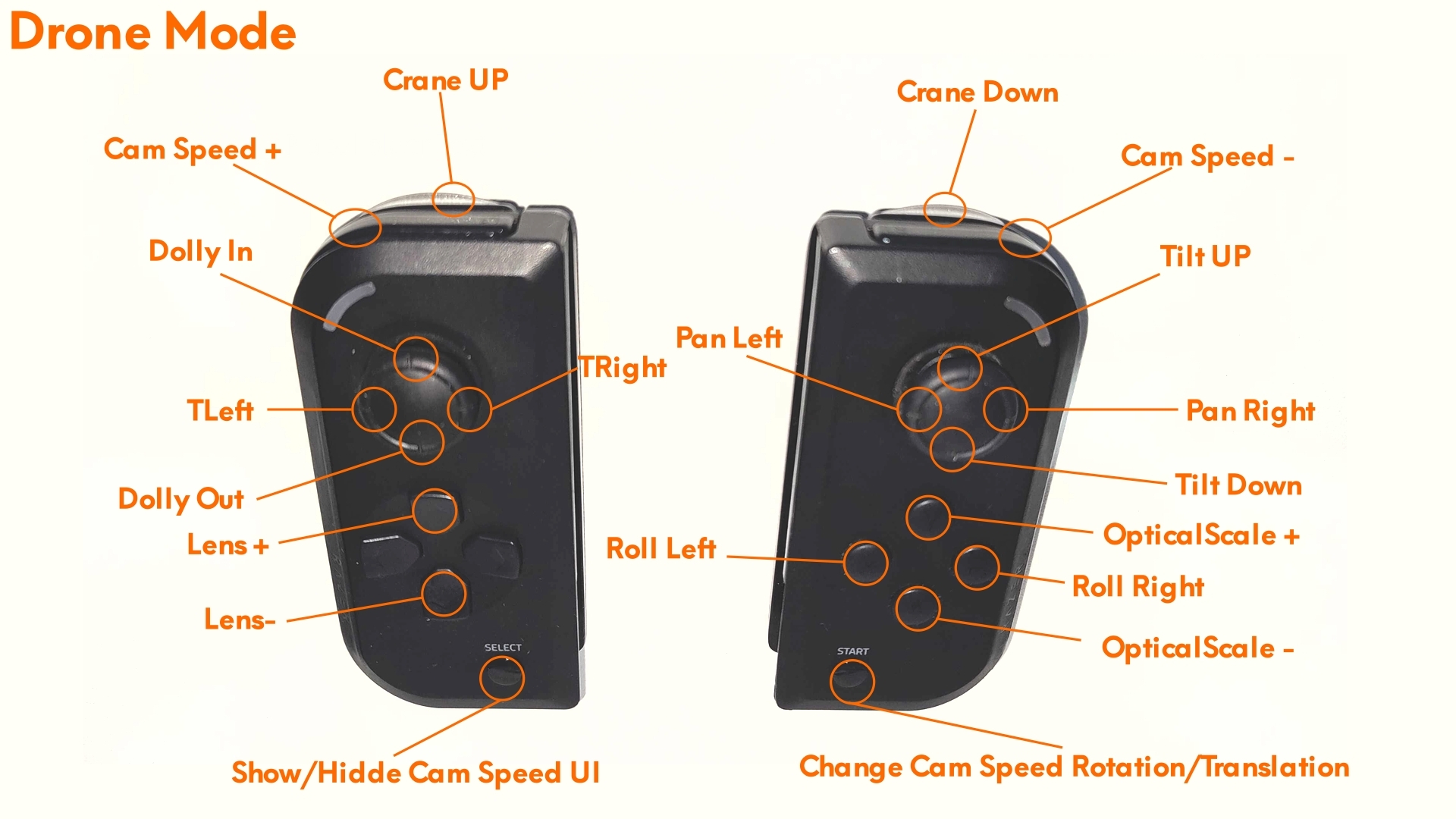
The camera operator’s hands stay on the rig at all times. The two game controllers on the grip cover every camera move they need to make during a take: moving the camera in any direction (“translation”), pointing the camera (“rotation”), swapping lenses, and adjusting how fast the camera flies when they push a joystick. The mapping is designed so the operator never has to look away from the iPad viewfinder.
Full Junglecat button breakdown
Translation (body movement)
- Dolly In / Out. Joystick forward/back on the left controller. Pushes the camera along the lens axis (forward toward the subject, backward away).
- TLeft / TRight. Joystick left/right on the left controller. Translates the camera left or right perpendicular to the lens (T = Translation).
- Crane Up / Down. Top shoulder buttons (Up on the left controller, Down on the right). Raises or lowers the camera vertically.
Rotation (framing)
- Pan Left / Right. Joystick left/right on the right controller. Rotates the camera horizontally (yaw).
- Tilt Up / Down. Joystick up/down on the right controller. Rotates the camera vertically (pitch).
- Roll Left / Right. Face buttons on the right controller. Rotates the camera around the lens axis for Dutch tilts.
Lens
- Lens + / −. Face buttons on the left controller. Cycles forward/backward through saved focal-length presets (e.g., Arri Master Prime 12mm, 25mm, 50mm).
Optical Scale
- OpticalScale + / −. Face buttons on the right controller. Scales the operator’s physical movement so one real-world step can cover several virtual ones (or fewer, going down).
Speed control
- Cam Speed + / −. Top shoulder buttons (+ on the left controller, − on the right). Increases or decreases the joystick speed multiplier in whichever mode (rotation or translation) is currently active. Affects controller-driven flight only. The operator’s physical walking is unaffected.
- Change Cam Speed Rotation/Translation. START button on the right controller. Toggles which channel (rotation or translation) the Cam Speed +/− buttons currently adjust.
- Show/Hide Cam Speed UI. SELECT button on the left controller. Toggles the on-screen speed indicator overlay in the Unreal viewport.
Technical director’s controls
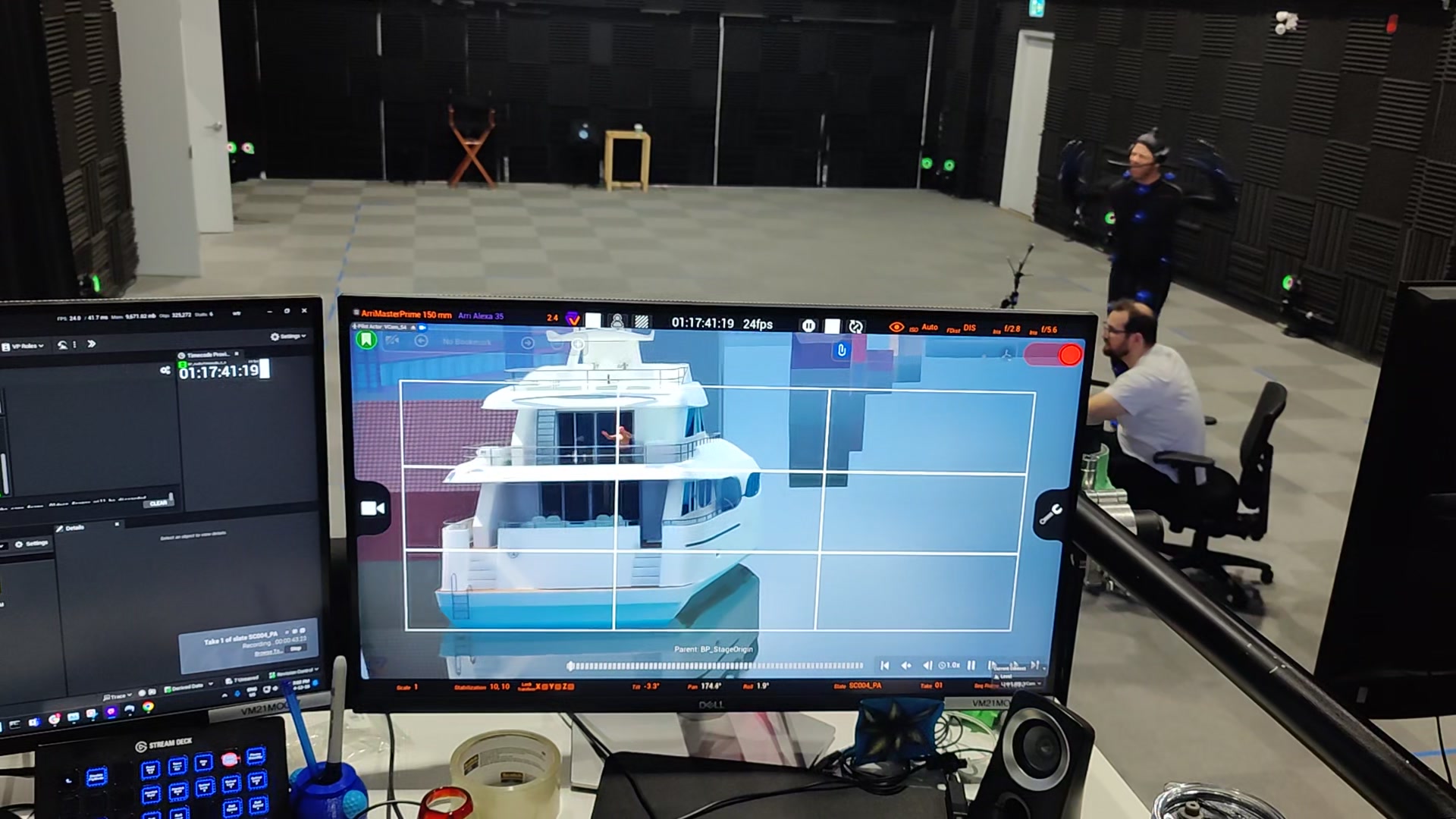
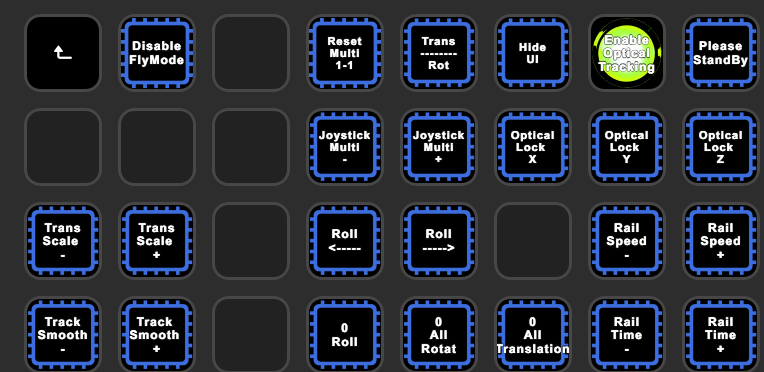
A second operator (the “Technical Director”, or “Unreal Operator”) sits at a workstation off-stage and runs an Elgato Stream Deck, a small panel of programmable physical buttons. Where the camera operator handles framing in the moment, the Technical Director handles everything around it: turning systems on and off, locking the camera to certain movements, pre-setting speed multipliers, freezing the rig with a “stand by” image while they reconfigure, and managing pre-baked camera paths called “rails.”
Both control surfaces share key controls so either operator can adjust the rig mid-shot, but the primary jobs are split. The camera operator frames. The Technical Director runs the setup.
Full Stream Deck button breakdown
Mode toggles
 Trans/Rot. Flips between Translation and Rotation modes. Each mode has its own joystick speed multiplier.
 Disable FlyMode. Turns off controller-driven free-flight. The rig only responds to physical movement.
 Hide UI. Drops the on-screen overlays (lens metadata, framing guides, recording indicator) for a clean viewfinder.
 Enable Optical Tracking. Toggles whether the OptiTrack feed is driving the camera transform.
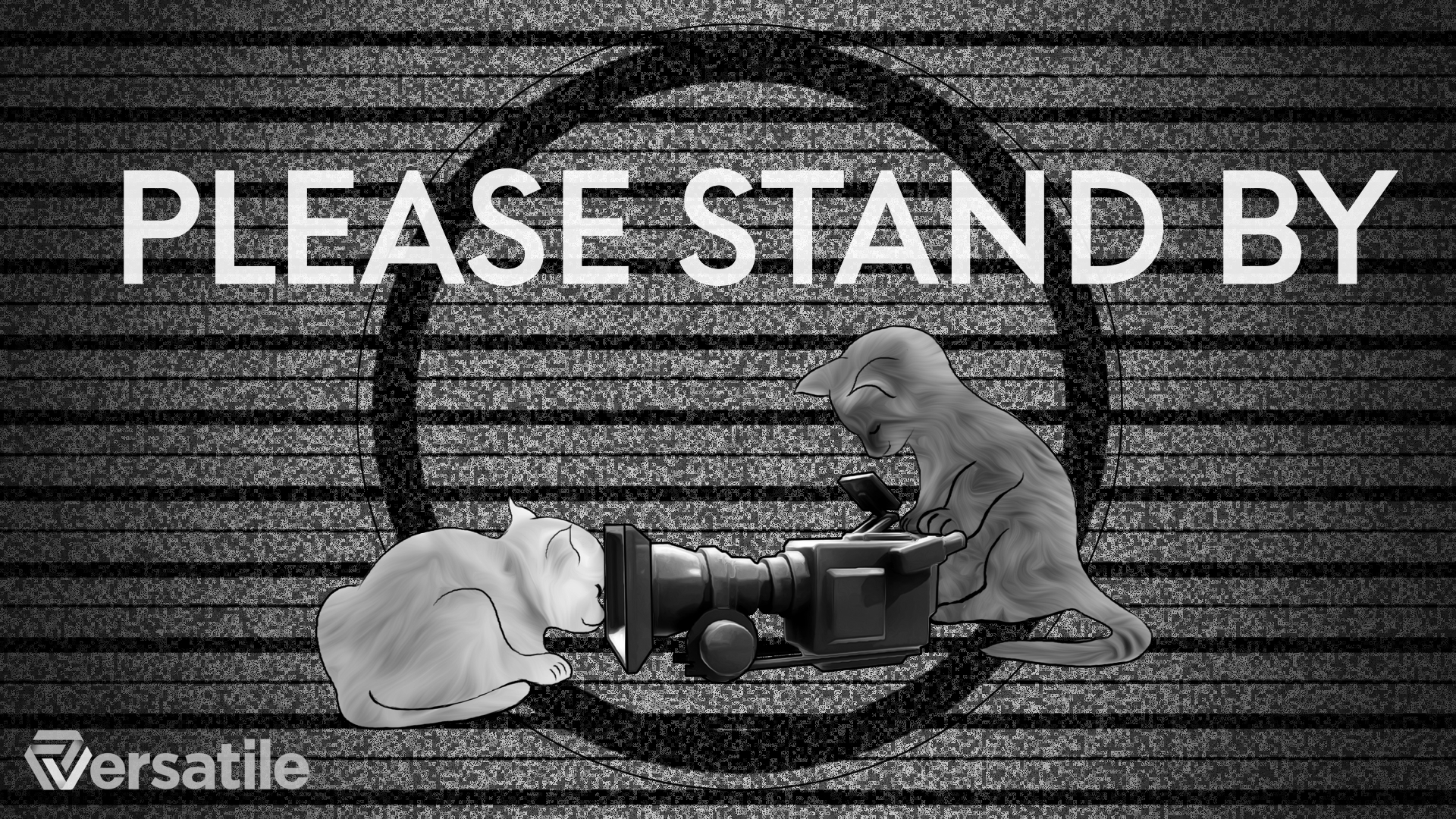
 Please Stand By. Freezes the operator’s controller input and overlays a stand-by image on the iPad while the technical director reconfigures the rig.
Multipliers and scaling
 Joystick Multi −/+. Adjusts the joystick speed multiplier in whichever mode (Trans or Rot) is active.
 Trans Scale −/+. Scales the operator’s physical movement so one real-world step can cover several virtual ones.
 Track Smooth −/+. Adjusts smoothing on the optical tracking data, trading responsiveness for anti-jitter.
 Reset Multi 1-1. Snaps both Joystick Multi values (translation speed and rotation speed) back to 1.
Optical-tracking axis locks
 Optical Lock X / Y / Z. Locks the camera’s position on each axis individually. Useful for slides along one axis or pinning the camera at a specific elevation.
Roll trim and zeroing
 Roll ←/→. Trims the camera’s roll incrementally for fine adjustments.
 0 Roll. Zeroes out the camera’s roll value.
 0 All Rotat. Zeroes out all rotation channels.
 0 All Translation. Zeroes out all translation channels.
Rail-cam playback
 Rail Speed −/+. Adjusts the playback speed of a virtual camera rail (a pre-baked camera path).
 Rail Time −/+. Steps the rail’s time scrub forward or backward.
How a shoot runs
A typical shoot uses a small specialised crew, each role focused on a different part of the production. The chart below shows the full lineup. Smaller shoots scale this down.
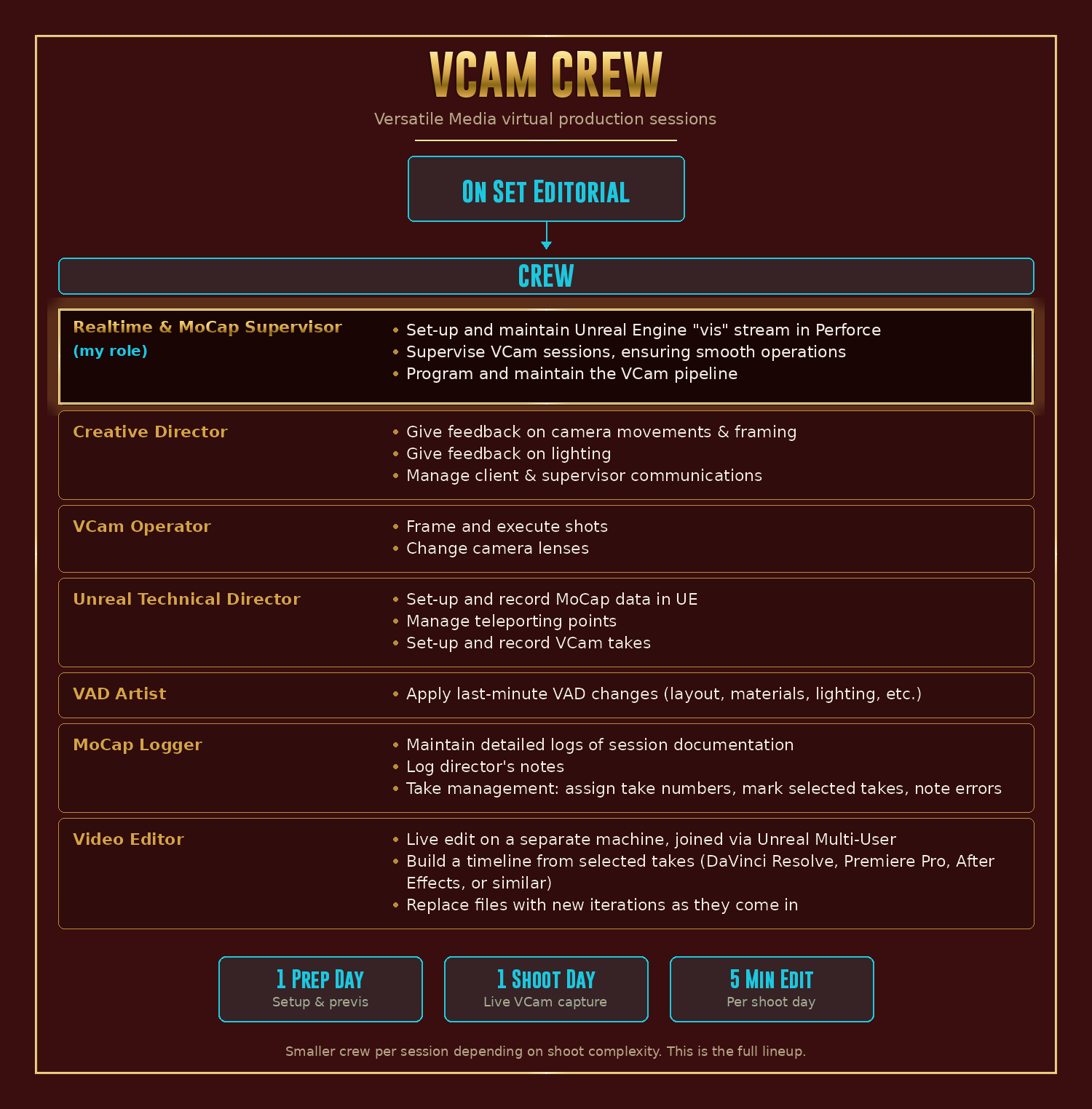
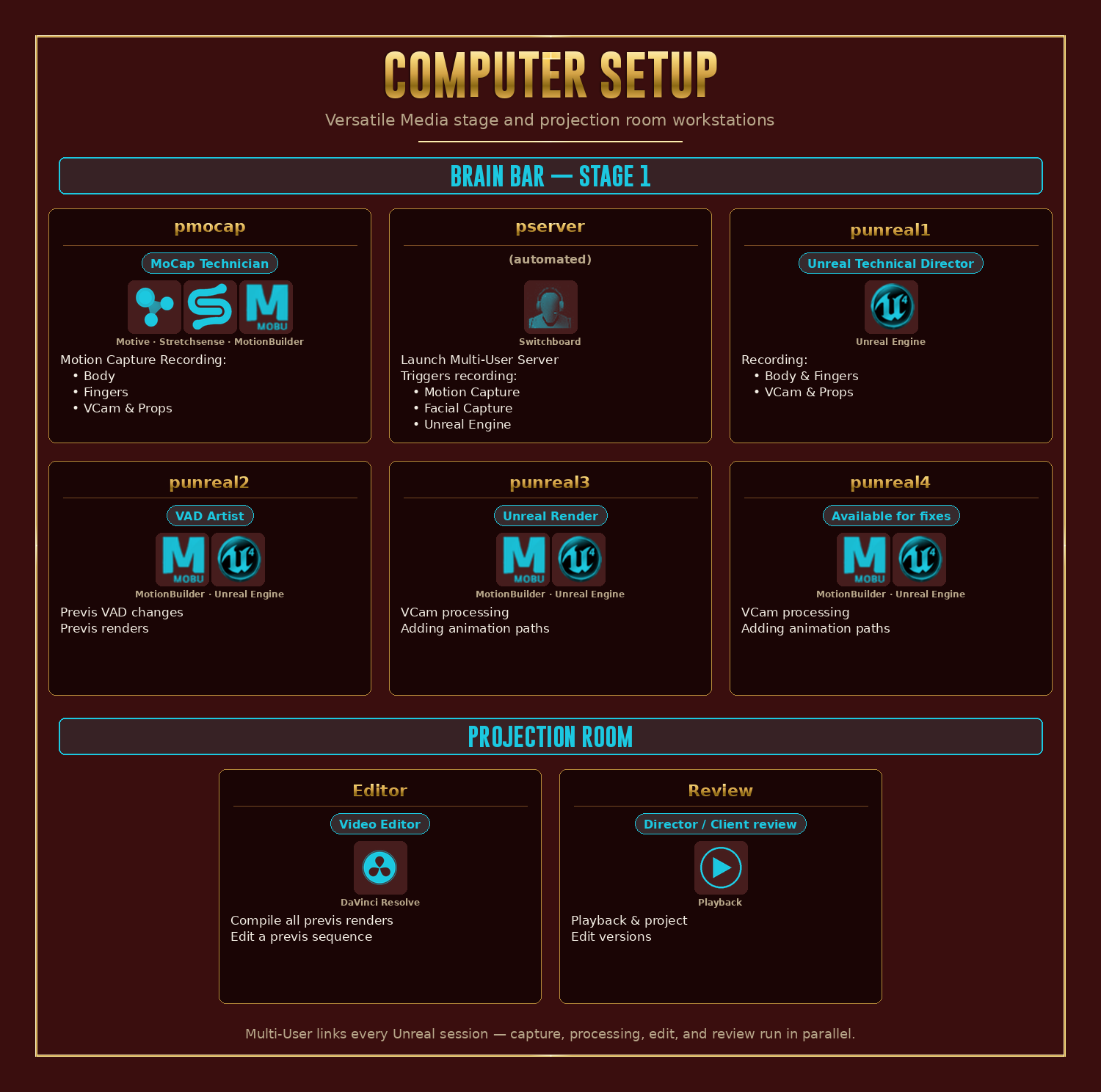
One thing worth calling out: a video editor sits at a workstation off-stage, joined to the same Unreal session as everyone else (through a feature called Multi-User that keeps all the workstations in sync). While the camera operator keeps shooting takes, the editor is already cutting the selected ones into an editorial timeline. By the end of the shoot day, the director has a working rough cut they can use to call for re-shoots or new shots immediately, instead of finding out a week later that something didn’t land.
Origins
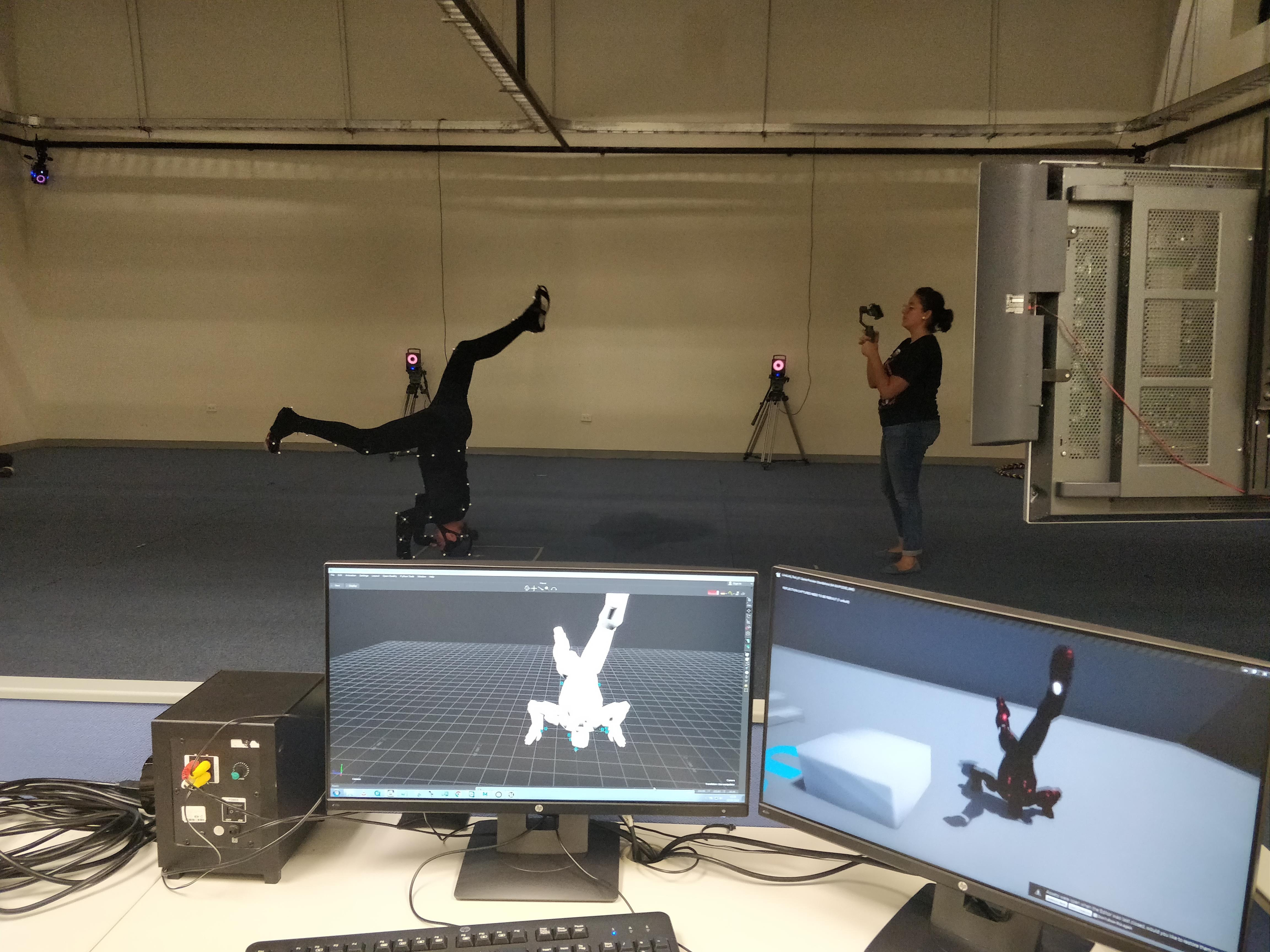
The earliest version of this idea predates the studio rig by four years. In 2018, at TETE — a weekend workshop I co-founded at university — my mentor Andrés Santín and I built the first prototype: an iPhone in a handheld stabilizer with reflective MoCap markers. The core architecture was already in place: optical tracking, screen-as-viewfinder, operator physically moving the rig. Just much cruder than today.
The full TETE prototype story (Taller Experimental de Tecnologías Emergentes, 2018)
In 2018, at a weekend workshop I co-founded at university (called TETE, short for Taller Experimental de Tecnologías Emergentes, or Experimental Workshop of Emerging Technologies in English), my mentor Andrés Santín and I built the first prototype: an iPhone in a handheld stabilizer, with five small reflective markers stuck on it so the workshop’s motion-capture system could track the phone’s position in real time. The Unreal viewport mirrored from a workstation onto the phone, so the operator could see the live digital scene from wherever the iPhone was pointing.
Crude compared to today’s rig, but the core architecture was already in place: optical tracking, a screen-as-viewfinder, and an operator physically moving the rig.
How it evolved
The first proper studio version was built at Versatile Media in 2022. It already used the same fundamental architecture as today: cage frame, marker crown on top, dual hand grips. The hardware was rougher and the ergonomic options were fewer, but the core ideas (MoCap-tracked, low-latency viewfinder, controller-driven flight) were in place.
Since 2022 the rig has gone through several iterations: the multi-config grip, the custom marker crown for cleaner tracking, new lens presets, custom controller mappings, and ongoing software refinements.
In production
The rig has been the studio’s standard operator-driven virtual camera since 2022, used on every Versatile Media project in that window: internal demos, web series deliveries, previs work, the works. The original 2022 frame was built with the help of Neelish Nair, Evan O’Reilly, Kyle Liu, and Arthur Kazakov. I’ve led the tool solo since then.